How to Crop and Resize for YouTube Vertical Shorts Complete Guide
Creating vertical videos for YouTube Shorts is essential for any content creator who wants to grow their channel and capture the attention of mobile viewers. With millions of users scrolling daily, the way you frame, crop, and resize your videos directly impacts engagement, watch time, and your channel growth. Properly cropped and resized videos look professional, help your content stand out, and increase the chances that viewers will watch your video all the way to the end.
In this comprehensive guide, we’ll dive deep into everything you need to know about cropping and resizing videos for YouTube Shorts, including platform requirements, step-by-step instructions, advanced tips, and common mistakes to avoid. By the end, you’ll have a complete workflow that ensures your videos are optimized for vertical viewing and high engagement.
Understanding YouTube Shorts Aspect Ratio and Requirements
Before you start editing, it’s crucial to understand YouTube Shorts technical standards, because failing to meet them can affect your video’s performance. YouTube Shorts are designed for vertical mobile viewing, which means they require a 9:16 aspect ratio. This ensures that your video takes up the entire screen on a mobile device, giving viewers a fully immersive experience.
Recommended specifications:
-
Aspect ratio: 9:16 (vertical)
-
Resolution: 1080 x 1920 pixels (Full HD)
-
Video format: MP4 or MOV
-
Maximum length: 60 seconds
-
High bitrate for sharp clarity
If your original video is horizontal (16:9) or square (1:1), you cannot simply stretch it to fit a vertical screen. Doing so will distort your footage and reduce quality. Instead, cropping and resizing allow you to reframe your content, keeping the most important subjects in focus while maintaining visual integrity.
Why Proper Cropping Matters
Cropping is more than just resizing a video—it’s about reframing the visual story to maximize engagement. A poorly cropped video can make your content look amateurish, cut off important elements, and reduce viewer retention. Proper cropping ensures your audience sees exactly what you want them to see, which is crucial for vertical Shorts where every second counts.
Key benefits of proper cropping:
-
Focus on the subject: Ensures faces, products, or key actions remain visible.
-
Professional appearance: Keeps your content clean and visually appealing.
-
Higher engagement: Videos that are easy to watch tend to have better retention.
-
Algorithm advantage: YouTube rewards videos with higher watch time, making properly cropped content more likely to appear in Shorts feeds.
Cropping should always be done with your main subject and action in mind. The goal is to guide viewers’ eyes directly to the most important parts of your video.
Step-by-Step Guide to Crop and Resize Videos for YouTube Shorts in CapCut
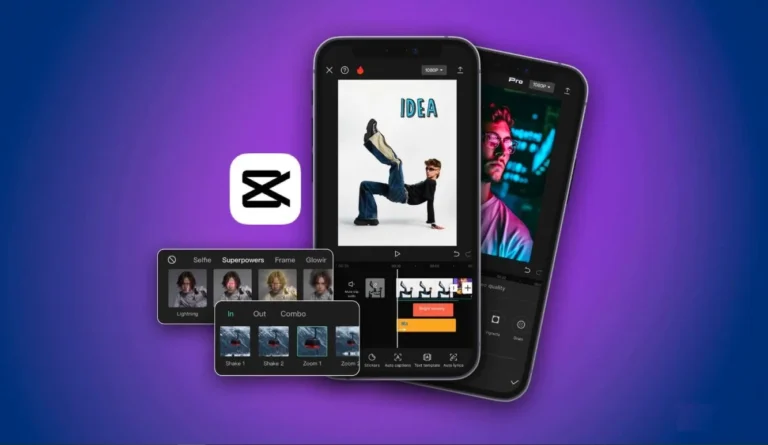
CapCut is one of the most popular mobile editing tools for creating vertical videos. Here’s a detailed workflow to crop and resize your videos professionally.
Step 1: Import Your Video
-
Open CapCut and create a new project.
-
Tap “Add” to import your video. You can use horizontal, square, or vertical footage.
-
Always start with the highest resolution version available to prevent quality loss during cropping.
Step 2: Change Canvas Ratio
-
In the bottom menu, tap Format or Canvas.
-
Select 9:16 ratio to make your video vertical.
-
CapCut may automatically zoom or crop your video to fit the frame.
This is the first step to ensuring your content fits the vertical format required for YouTube Shorts.
Step 3: Adjust Position Manually
-
Pinch to zoom in or out until the subject is framed correctly.
-
Drag the video vertically or horizontally to center your main action.
-
Key points to remember:
-
Keep faces and main actions fully visible.
-
Avoid cutting off hands, text, or other important visuals.
-
Make sure the main subject stays in the middle of the frame for maximum viewer focus.
-
Manual adjustment ensures that automated cropping doesn’t remove essential details.
Step 4: Use Keyframes for Moving Subjects
-
If your subject moves, set keyframes to follow them throughout the video.
-
Add a keyframe at the beginning of your timeline.
-
Move forward along the timeline and adjust the position of the video frame to track the subject.
-
This dynamic framing keeps viewers engaged and ensures that the focus never drifts away from the main action.
Keyframes are especially useful for sports clips, dancing videos, and vlogs with moving subjects.
Step 5: Export in High Quality
-
After editing, tap Export.
-
Recommended settings:
-
Resolution: 1080p (Full HD)
-
Frame rate: Match your original video (usually 30fps or 60fps)
-
High bitrate for clarity
-
-
Avoid exporting in low resolution to maintain professional quality.
Proper export settings are essential to ensure your Shorts look sharp on mobile screens.
How to Crop Without Losing Video Quality
Quality loss is one of the most common issues when cropping vertical videos. This usually happens when you zoom too much, use low-resolution footage, or export incorrectly. Here’s how to maintain the highest quality:
-
Record in high resolution: If possible, shoot in 4K or at least 1080p.
-
Avoid excessive zooming: Only crop what is necessary to keep the subject in frame.
-
Keep original aspect ratio in mind: Resizing the wrong way can stretch or distort the video.
-
Export in 1080p or higher: Do not settle for 720p if your footage supports higher resolution.
-
Use high-bitrate settings: This keeps colors and sharpness intact.
Following these steps ensures that your Shorts remain crisp and professional, even after cropping.
Advanced Framing Techniques for Higher Engagement
To take your vertical videos to the next level, use these professional framing techniques:
1. Center Rule
Keep your main subject near the vertical center. Mobile viewers are used to focusing on the middle of the screen, and this ensures your content grabs attention immediately.
2. Headroom Control
Avoid leaving too much empty space above the subject’s head. Tight framing creates a more intimate and professional look, which encourages viewers to keep watching.
3. Safe Zone Awareness
YouTube overlays interface elements such as titles and progress bars at the top and bottom of Shorts. Keep text, logos, and essential actions away from these areas to prevent overlap.
4. Motion Focus
If your subject or action moves during the video, adjust your crop to follow the motion. This creates dynamic videos that keep viewers engaged and watching longer.
Cropping Horizontal Podcasts or Interviews for Shorts
Many creators repurpose existing horizontal content for Shorts. Here’s how to make these videos look professional:
-
Focus on the speaker: Crop to a medium or close-up shot of the person speaking.
-
Add captions: Captions increase engagement and retention for mobile viewers.
-
Use background blur: Blurring irrelevant areas draws attention to the main subject.
-
Highlight gestures or expressions: Crop to capture facial expressions and hand gestures for more emotional impact.
Repurposing long-form content into vertical Shorts is an effective way to increase reach without shooting new footage.
Resizing Square Videos for Vertical Shorts
Square videos (1:1) are common on Instagram or Facebook. To convert them into 9:16 vertical videos:
-
Change the canvas ratio to 9:16 in your editor.
-
Add top and bottom padding or blurred backgrounds to fill extra space.
-
Center your subject for proper framing.
-
Adjust any text overlays or graphics to fit within the vertical safe zones.
Square-to-vertical conversion is often easier than horizontal-to-vertical because less zooming is needed, reducing quality loss.
Common Cropping Mistakes to Avoid
Even experienced creators make mistakes that can harm viewer retention. Avoid these pitfalls:
-
Over-zooming, which pixelates footage.
-
Cutting off faces, hands, or important visuals.
-
Ignoring lighting adjustments after zooming.
-
Forgetting to preview the video in full-screen before exporting.
-
Exporting at low resolution (720p or less) for vertical content.
Professional creators always double-check the framing, lighting, and export quality before uploading to ensure maximum impact.
Best Export Settings for Maximum Shorts Performance
For videos that stand out in YouTube Shorts feeds:
-
Resolution: 1080 x 1920 pixels (Full HD)
-
Frame rate: Match original video (30fps or 60fps)
-
Bitrate: High
-
Format: MP4
-
Video length: Under 60 seconds
Consistent quality across videos builds authority and trust with your audience and signals YouTube that your content is professional and worth recommending.
Why Vertical Optimization Impacts Algorithm Performance
YouTube Shorts’ algorithm heavily prioritizes:
-
Watch time – Videos that keep viewers watching perform better.
-
Retention – Viewers are more likely to rewatch engaging, well-framed Shorts.
-
Replays and engagement – Correctly cropped content is more visually appealing, increasing likes, shares, and comments.
Proper cropping ensures that viewers focus on your content immediately, improving retention and boosting the chances of your Shorts going viral.
Final Thoughts
Cropping and resizing for YouTube Shorts is more than a technical necessity—it is a strategic move that directly affects how your audience perceives your content. By framing your subjects correctly, using keyframes to track motion, exporting in high quality, and avoiding common mistakes, your Shorts will look professional, increase viewer retention, and attract more organic growth.
Investing time in vertical optimization not only improves your video quality but also strengthens your authority as a creator. If you consistently apply these practices, your channel will benefit from higher engagement, increased watch time, and more exposure on YouTube Shorts.