How to Create CapCut Templates Easily Beginner Guide (2026)
Creating your own templates in CapCut is one of the most effective ways to speed up video editing and maintain a consistent style across your content. Templates allow you to reuse transitions, text styles, effects, and timing without rebuilding everything from scratch. For content creators who publish regularly on TikTok, Instagram, or YouTube, custom templates can save hours of editing time while keeping videos visually consistent.
This detailed guide explains how to create your own CapCut templates, organize them effectively, and use them for faster and more professional video production.
Understanding CapCut Templates
A template in CapCut is essentially a pre designed editing structure that includes specific elements such as clips, transitions, effects, text styles, and music timing. Instead of starting every project from zero, you can build a reusable framework that allows you to replace footage while keeping the same creative structure.
Templates are especially useful for:
- Maintaining a consistent editing style
- Producing videos faster
- Creating brand identity for social media content
- Reusing complex transitions and animations
- Scaling content creation for daily uploads
Many creators who post short form content rely on templates to maintain visual consistency across dozens of videos each week.
Why Creating Your Own Templates Is Useful
While CapCut offers many ready made templates, building your own provides far greater flexibility and creative control.
Consistent Branding – Custom templates allow you to maintain the same fonts, colors, animations, and transitions across all your videos. This creates a recognizable style that audiences associate with your content.
Faster Editing Workflow – Instead of rebuilding transitions and effects repeatedly, you simply replace the clips and update text.
Better Content Quality – When you refine a template over time, your videos become more polished and visually consistent.
Ideal for Social Media Creators – Templates make it easier to produce multiple pieces of content quickly for platforms such as TikTok, Instagram Reels, and YouTube Shorts.
Planning Your Template Before Creating It
Before opening CapCut, it helps to plan the structure of your template. A well designed template should include a clear editing flow.
Think about the following elements:
- Video length and pacing
- Number of clips used
- Transitions between scenes
- Text overlays and captions
- Sound effects or background music
- Brand colors and fonts
For example, a simple short form template might look like this:
- Intro clip with animated title
- Main content clips with quick transitions
- Highlight text or captions
- Outro screen with call to action
Planning these elements beforehand will make the creation process much easier.
Step by Step Guide to Creating Your Own CapCut Template
Step 1: Open a New Project
Launch CapCut and start a new project. Import sample clips or placeholder footage that will represent the structure of your template.
These clips do not need to be final footage because they will later be replaced when using the template.
Step 2: Build the Timeline Structure
Arrange the clips in the order you want them to appear in the final video. Focus on the overall timing and pacing.
For example:
- Intro clip 2 seconds
- Main clip 1 3 seconds
- Main clip 2 3 seconds
- Final clip or outro 2 seconds
This timeline becomes the foundation of your reusable template.
Step 3: Add Transitions Between Clips
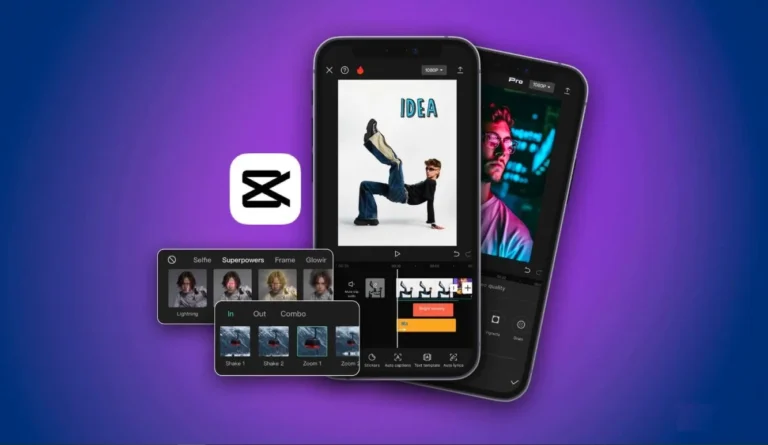
Transitions help videos feel smooth and professional. CapCut offers many transition styles including fades, zoom effects, motion transitions, and creative glitch effects.
Choose transitions that match your editing style and apply them between clips. When you later reuse the template, these transitions will automatically apply to new footage.
Avoid overusing complex transitions because simple edits often look more professional.
Step 4: Add Text and Title Animations
Text elements are an important part of many social media videos. You can include:
- Opening titles
- Subtitles or captions
- Highlight words
- Call to action messages
Customize the font, size, color, and animation. Once added to the template, you only need to change the wording for each new video.
Consistent text styles help build a recognizable editing brand.
Step 5: Apply Effects and Filters
CapCut includes many visual effects and color filters. Applying these to your template ensures your videos maintain a consistent aesthetic.
Common effects used in templates include:
- Color grading filters
- Blur effects
- Glow or light effects
- Vintage or cinematic tones
Using the same filter across multiple videos creates a cohesive visual identity.
Step 6: Add Music and Beat Markers
Many creators design templates around music beats. Import a track and mark the beats on the timeline. Align your clips with these beat markers so transitions and cuts sync with the rhythm.
When you replace footage later, the timing remains perfectly synced with the music.
This technique is especially useful for TikTok and Instagram edits where beat synchronization improves engagement.
Step 7: Create Placeholders for Future Clips
To make your template reusable, leave placeholder clips that can easily be replaced. These placeholders define where future footage will appear.
For example:
- Clip slot 1 Intro shot
- Clip slot 2 Main action
- Clip slot 3 Reaction shot
- Clip slot 4 Ending scene
When editing a new video, you simply replace these clips with new content while the structure remains unchanged.
Step 8: Save the Project as a Template
Once the structure is complete, save the project. CapCut allows you to duplicate projects so you can reuse them later.
Whenever you want to create a new video, simply open the template project and replace the clips and text.
This workflow dramatically reduces editing time.
Tips for Creating Professional CapCut Templates
Keep the Structure Simple – A good template should be easy to reuse. Avoid overly complex timelines with too many effects.
Focus on Reusability – Design templates that work with different types of footage so they can be used repeatedly.
Maintain Consistent Branding – Use the same colors, fonts, and effects across all templates to strengthen your brand identity.
Test the Template – Before using the template regularly, test it with several different clips to make sure it works smoothly.
Best Types of Templates to Create
Content creators often build several template styles for different types of videos.
Common examples include:
- Short form viral edits
- YouTube intro templates
- Instagram Reel highlight edits
- Tutorial style video layouts
- Before and after transformation videos
Having multiple templates allows you to produce different types of content quickly.
Common Mistakes to Avoid
Many beginners make small mistakes when creating templates that reduce their effectiveness.
Avoid these common problems:
- Using too many effects which makes videos look cluttered
- Making templates too specific for one video type
- Forgetting to leave clip placeholders
- Ignoring audio timing and beat sync
- Using inconsistent fonts and colors
Keeping your template clean and organized will make it easier to reuse.
Improving Your Templates Over Time
The best templates evolve over time. As you create more videos, pay attention to what works best.
You might notice that:
- Certain transitions perform better
- Specific text styles attract more engagement
- Some video lengths work better for social media algorithms
Use these insights to refine your templates and improve future content.
Final Thoughts
Creating your own templates in CapCut is one of the most powerful ways to streamline your editing workflow and produce consistent, professional looking videos. Instead of starting every project from scratch, templates allow you to reuse proven structures and focus on creativity.
By planning your timeline, adding transitions, designing text styles, and organizing placeholders, you can build templates that work across multiple videos and platforms. As you continue refining them, your editing process becomes faster, more efficient, and more visually consistent.
For content creators who publish frequently on TikTok, Instagram, and YouTube, mastering template creation can significantly improve both productivity and video quality.