Create Educational Video Edits Using CapCut Step by Step Guide
Educational video content has become one of the strongest tools for sharing knowledge online. Whether you are teaching academic subjects, software tutorials, language lessons, exam preparation, digital skills, or professional training, well edited videos significantly improve understanding and retention.
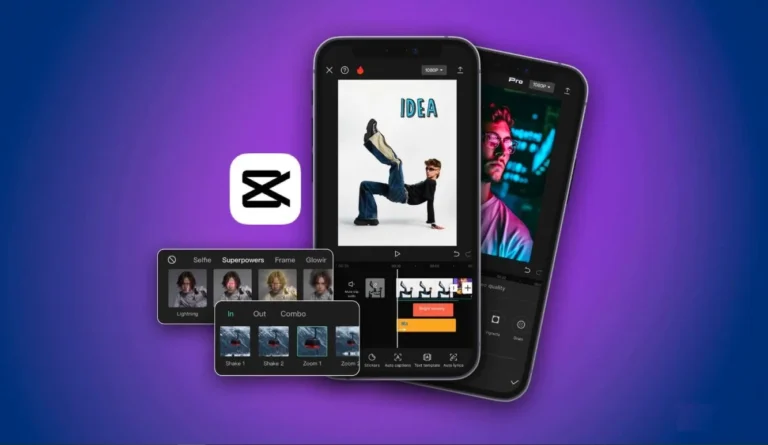
Today, many creators rely on CapCut, the powerful editing app developed by ByteDance, to produce high quality educational videos directly from their mobile devices or computers. CapCut provides advanced features such as keyframes, text animation, auto captions, background removal, overlays, and audio enhancement that make it suitable for structured teaching content.
In this comprehensive guide, you will learn how to create clear, structured, professional educational video edits using CapCut. The goal is not just to make your videos look attractive but to ensure they demonstrate expertise, authority, and trustworthiness while improving learning outcomes.
Why Educational Video Editing Requires a Different Approach
Educational content is not entertainment content. While entertaining videos focus on excitement and fast pacing, educational videos prioritize clarity, structure, and logical flow.
When editing educational videos, your goal should be:
-
Clear explanation of concepts
-
Logical progression of ideas
-
Visual support for understanding
-
Strong audio clarity
-
Professional presentation
Poor editing can create confusion, distract learners, and reduce watch time. On the other hand, structured editing increases comprehension, builds credibility, and signals expertise to both viewers and search engines.
If your blog and videos focus on tutorials, training, or learning, high quality editing also strengthens your overall EEAT signals. Consistency, clarity, and professionalism show that you have real experience in your niche.
Step 1: Plan Your Educational Video With Clear Learning Outcomes
Before opening CapCut, planning is essential. Professional educational videos are never random. They follow a structured outline.
Define the Core Objective
Ask yourself:
-
What exactly will viewers learn?
-
What problem are you solving?
-
What level is your audience at?
-
Is this beginner, intermediate, or advanced content?
For example, if your topic is editing basics in CapCut, your objective could be:
“After watching this lesson, viewers will understand how to structure a timeline and use basic editing tools effectively.”
Clear objectives make editing easier because you know what to emphasize.
Create a Structured Script
Educational videos should follow a logical structure:
-
Introduction to the topic
-
Explanation of importance
-
Step by step breakdown
-
Practical demonstration
-
Summary and recap
Writing a script improves authority. It prevents filler words and unnecessary explanations. It also helps you maintain a confident tone while recording.
Step 2: Organize Your Media Files Professionally
Once your footage is ready, open CapCut and create a new project.
Import All Required Assets
For educational videos, you may need:
-
Talking head footage
-
Screen recordings
-
Presentation slides
-
Charts or images
-
Background music
-
Sound effects
-
Logo and branding elements
Organize your clips in order of usage. Rename important clips so you can easily find them.
Professional organization saves editing time and prevents mistakes. It also reflects a structured workflow, which aligns with expert level content creation.
Step 3: Build a Clear Timeline Structure
Educational videos should feel like a lesson, not random clips stitched together.
Recommended Lesson Flow in Timeline
-
Short hook introducing the problem
-
Title animation
-
Topic overview
-
Step by step explanation
-
Demonstration
-
Key takeaways
-
Outro or next lesson preview
Separate your layers properly:
-
Main video on primary track
-
Text overlays on upper layers
-
Screen recordings above talking head
-
Background music below voice track
Layering correctly helps maintain clarity and avoids visual clutter.
Step 4: Use Clear and Consistent On Screen Text
Text plays a critical role in educational content.
Many learners process information better when they both hear and see it.
Add Section Titles
Use titles to divide lessons into sections. This helps viewers mentally organize information.
For example:
Introduction
Step One
Common Mistakes
Final Summary
Keep font styles consistent throughout the video. Avoid decorative fonts that reduce readability. Choose clean, professional fonts with strong contrast between text and background.
Highlight Key Terms
When explaining technical terms, definitions, or formulas:
-
Highlight them with bold colors
-
Animate them slightly
-
Keep them on screen long enough to read
This technique improves retention and reinforces learning.
Step 5: Enhance Learning With Screen Demonstrations
If you are teaching practical skills such as editing, design, coding, or app usage, screen recordings are essential.
Import your screen recording and:
-
Crop unnecessary areas
-
Zoom into important sections
-
Use keyframes to guide focus
-
Add arrows or circles around key buttons
Zoom effects should be smooth and purposeful. They should guide attention, not distract.
Demonstration based learning increases credibility because viewers see real implementation, not just theory.
Step 6: Improve Audio Quality for Professional Authority
Audio quality can determine whether viewers trust your content.
Even average video quality is acceptable if audio is clear. But poor audio makes content feel unprofessional.
Optimize Voice Clarity
Inside CapCut:
-
Adjust volume levels
-
Remove background noise
-
Use audio enhancement tools
-
Normalize voice volume
Keep background music very soft. It should support the content, not overpower it.
Educational videos require a calm and steady voice tone. Speak clearly and avoid rushing.
Good audio builds trust and signals professionalism.
Step 7: Keep Transitions Clean and Minimal
Educational content should not use excessive flashy transitions.
Avoid:
-
Rapid spinning effects
-
Intense motion transitions
-
Distracting animations
Instead use:
-
Simple cuts
-
Fade transitions
-
Light dissolve effects
The purpose of transitions in educational content is smooth continuity, not visual excitement.
Step 8: Use Subtle Animations to Improve Engagement
Animations can improve clarity when used correctly.
Examples include:
-
Animated bullet points
-
Slide in titles
-
Highlight effects on keywords
-
Simple motion graphics
Animations should guide attention to important information. Over animation can overwhelm viewers and reduce focus.
Always ask yourself:
Does this animation improve understanding?
If not, remove it.
Step 9: Add Accurate Captions for Accessibility
Captions are essential for educational videos.
They help:
-
Non native speakers
-
Hearing impaired viewers
-
Viewers watching without sound
-
SEO indexing on platforms
Use CapCut auto caption feature and manually correct errors.
Keep captions:
-
Short and clear
-
Properly timed
-
Free of spelling mistakes
Accessibility increases trustworthiness and makes your content more inclusive.
Step 10: Strengthen EEAT Through Presentation
To build expertise and authority in your niche:
Show Real Experience – Instead of only explaining concepts, demonstrate real examples. Show mistakes and solutions.
Use Practical Scenarios – Apply concepts to real world use cases.
Maintain Consistent Branding – Use the same color scheme, logo placement, and style in all videos. Consistency builds recognition and authority.
Avoid Overpromising – Be honest about what viewers will learn. Clear expectations increase trust.
Step 11: Export Settings for Maximum Quality
Export quality affects perceived professionalism.
For long educational videos:
-
Resolution: 1080p minimum
-
High bitrate
-
Match original frame rate
For vertical lessons or short tutorials:
-
9:16 ratio
-
1080 x 1920 resolution
Always preview the final export before publishing.
High resolution videos signal professionalism and improve viewer retention.
Common Mistakes in Educational Video Editing
Avoid these frequent errors:
-
Talking too fast without pauses
-
Adding loud background music
-
Using too many animations
-
Showing cluttered screen recordings
-
Skipping summaries
Each lesson should end with a clear recap. Summaries improve retention and help learners review important points.
Final Thoughts
Creating educational video edits using CapCut requires more than adding effects. It requires thoughtful structure, clean design, strong audio clarity, and logical explanation.
When you combine:
-
Clear learning objectives
-
Organized timeline structure
-
Professional text overlays
-
Clean transitions
-
Accurate captions
-
High quality export settings
You create content that demonstrates expertise and authority.
Educational videos are long term assets. With proper editing and structured presentation, your lessons can build credibility, increase watch time, and position you as a trusted educator in your niche.
Consistent quality and clarity will help you grow not only your audience but also your authority in the digital learning space.