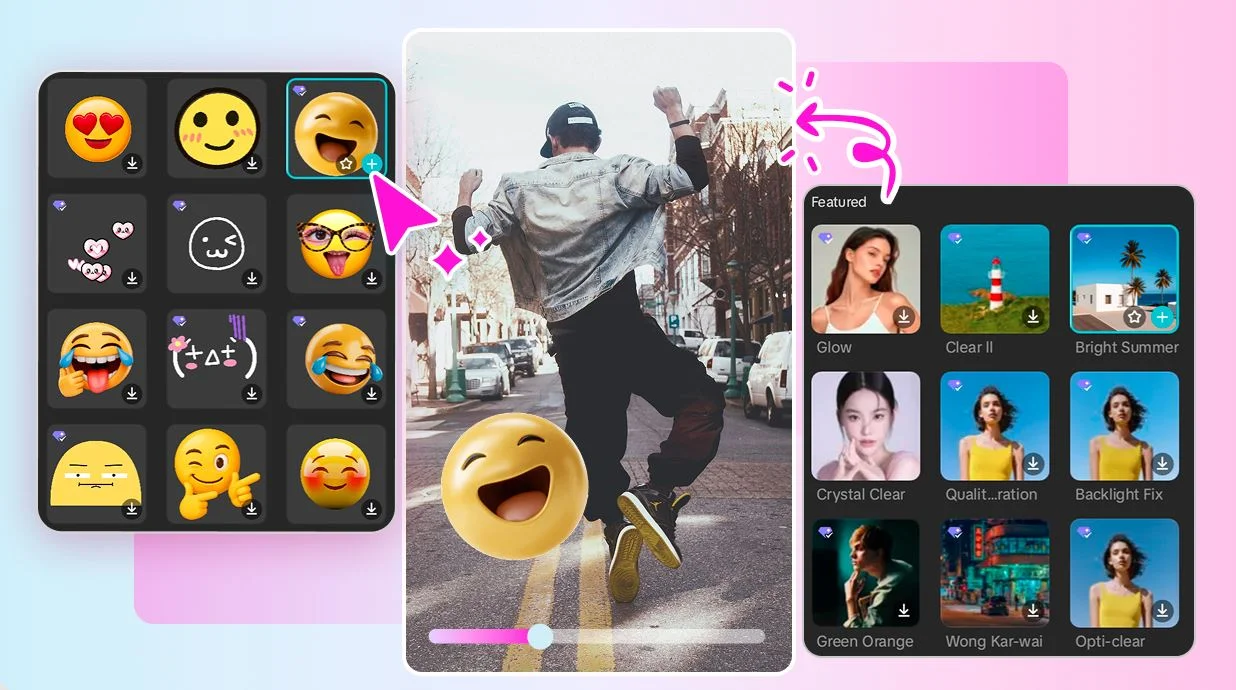
TikTok Video Edit Tutorial With CapCut Step-by-Step Guide 2026
Short-form video continues to dominate social media in 2026, and TikTok remains one of the most powerful platforms for organic reach. High quality editing is no longer optional. It is the difference between a video that gets ignored and a video that goes viral.
CapCut has become the preferred editing tool for TikTok creators because of its professional tools, smooth performance, and deep integration with short-form content trends. Whether you are a beginner or an advanced editor, this complete step-by-step tutorial will guide you through creating a polished TikTok video from start to finish.
This guide is written from practical editing experience and optimized according to current 2026 TikTok content standards.
Why CapCut Is the Best Choice for TikTok in 2026
CapCut has evolved significantly over the past few years. It is no longer just a simple mobile editor. It now includes advanced timeline control, AI powered tools, professional transitions, keyframe animation, background removal, and smart beat synchronization.
Here is why creators continue choosing it:
User Friendly Interface
The layout is clean and intuitive. Beginners can start editing immediately without technical knowledge. Advanced editors can still access precision tools like curves, keyframes, masking, and layered overlays.
Professional Quality Export
CapCut allows high resolution exports up to 4K with adjustable frame rates. This ensures your TikTok videos maintain clarity after compression.
Built for Short Form Platforms
CapCut supports vertical 9:16 formatting by default, which is ideal for TikTok. It also offers trending templates aligned with viral styles.
Constant Feature Updates
Frequent updates introduce AI tools such as auto captions, background removal without green screen, smart cut, and beat detection.
Because of these capabilities, CapCut remains one of the strongest editing solutions for TikTok creators in 2026.
What You Need Before You Start
Preparation is part of professional editing. Before opening CapCut, make sure you have:
• Vertical 9:16 video footage
• Good lighting in your recordings
• Clear audio or external microphone recording
• A selected music track or trending TikTok sound
• A clear idea of your video goal
Professional creators do not start editing randomly. They plan the flow before touching the timeline.
Step 1: Import Your Footage Correctly
Open CapCut and tap New Project. Select your raw clips from your gallery.
When importing:
• Choose clips in the correct order
• Ensure all footage is vertical
• Remove accidental or unnecessary recordings
Once added, your clips appear in the timeline.
Expert Tip:
Avoid overloading your project with too many clips initially. Import only what you plan to use. This keeps editing clean and efficient.
Step 2: Structure Your Video for Maximum Engagement
TikTok viewers decide within the first two seconds whether to continue watching. Your opening must grab attention immediately.
Professional hook strategies include:
• Starting mid action
• Adding bold animated text
• Using quick jump cuts
• Beginning with a surprising statement
Arrange your clips by dragging them in the timeline. Cut out pauses, mistakes, and filler content using the Split tool.
Editing Principle:
Every second must add value. If a segment does not improve the story, remove it.
Step 3: Trim and Refine With Precision
Now refine your video:
Use Split Tool
Cut unnecessary parts with accurate timing.
Adjust Speed
Tap Speed to create:
• Slow motion for dramatic effect
• Fast cuts for energy
• Smooth ramping for cinematic feel
Stabilize Shaky Clips
If your footage is slightly unstable, use stabilization to improve watchability.
Precision trimming improves viewer retention and makes your video feel intentional and professional.
Step 4: Add Music and Sync With Beats
Music drives TikTok performance. Rhythm based editing increases viewer engagement.
Tap Audio, then choose:
• Trending TikTok sounds
• Imported music files
• CapCut sound library
After adding music, use Beat Detection to identify rhythm points. Align your cuts and transitions with those beats.
Why Beat Sync Matters
When visuals match audio rhythm, the brain finds it satisfying. This keeps viewers watching longer and increases replay rates.
Lower background music volume slightly if you have dialogue to maintain clarity.
Step 5: Add Transitions Without Overusing Them
Transitions connect clips smoothly. Tap the small box between two clips to open transition options.
Recommended transitions for TikTok:
• Fade for storytelling
• Slide for dynamic movement
• Zoom for impact
• Spin for energetic edits
Professional Rule
Use transitions only when necessary. Clean cuts often perform better than excessive effects.
Overuse of flashy transitions can reduce content clarity and look unprofessional.
Step 6: Add Text That Improves Watch Time
Text overlays are critical for TikTok because many users watch without sound.
Tap Text, then Add Text.
Use:
• Bold readable fonts
• High contrast colors
• Short sentences
• Animated entrance effects
Auto captions can also be generated for talking videos.
Best Practices for Text
Keep text inside safe zones to avoid TikTok UI overlap. Place important information in the center area.
Readable text improves accessibility and increases retention.
Step 7: Enhance With Effects and Overlays
Effects should enhance, not distract.
Popular TikTok effect styles in 2026 include:
• Subtle motion blur
• Flash transitions on beat
• Glitch for dramatic edits
• Soft cinematic overlays
You can also add overlays like light leaks or particles for depth.
Editing Advice:
Always preview effects at full screen before exporting. Effects sometimes look stronger after rendering.
Step 8: Color Correction and Visual Enhancement
Color grading separates amateur content from professional content.
Tap Adjust and refine:
• Brightness
• Contrast
• Saturation
• Temperature
• Sharpen
For cinematic style:
Increase contrast slightly, reduce saturation a bit, and adjust temperature depending on mood.
Good color grading creates emotional tone and brand consistency.
Step 9: Add Voiceover or Sound Design
Tap Audio then Voiceover to record narration.
For clean audio:
• Record in quiet space
• Speak clearly
• Keep microphone steady
• Reduce background music volume
You can also add subtle sound effects for realism such as whoosh, pop, or ambient background sound.
Sound design improves immersion and perceived production quality.
Step 10: Export Using Optimal TikTok Settings
Tap Export and choose:
• Resolution: 1080p
• Frame Rate: 30fps or 60fps
• High quality enabled
Avoid compressing multiple times. Upload directly after export.
Higher export quality ensures TikTok compression does not significantly reduce clarity.
Advanced Editing Tips for 2026 TikTok Growth
To compete in 2026, basic editing is not enough. Consider these advanced techniques:
Use Pattern Interrupts – Add slight zooms, text changes, or visual movement every few seconds to maintain attention.
Keep Videos Short – Most high performing TikTok videos remain under 30 seconds.
Create Loop Ending – Make your final frame connect smoothly with the first frame. This increases replay count.
Use Micro Cuts – Remove micro pauses between words for faster pacing.
Common Editing Mistakes That Hurt Performance
• Overuse of flashy effects
• Long intro without hook
• Poor audio clarity
• Excessive text clutter
• Inconsistent color tones
• Exporting at low resolution
Avoiding these mistakes improves professionalism and viewer trust.
Final Thoughts
Learning how to edit TikTok videos in CapCut in 2026 is one of the most valuable skills for modern content creators. With proper structure, beat synchronization, clean transitions, readable text, and optimized exports, you can create professional quality videos directly from your smartphone.
Consistency, clarity, and creativity are more important than expensive equipment. Master these steps, practice regularly, and refine your editing style over time.
Your editing skills will improve with every project.